


MY EXPERIENCE • FOLLOW-UP REVIEW
Synology DS225+ in practice: my dashboard and custom services
For me, a NAS is no longer just a place to store files. Over time, I’ve built my own environment on the Synology DS225+, complete with a dashboard, monitoring, and apps that I enjoy coming back to.
From early plans to custom services
When I wrote my first Synology DS225+ review, Docker and custom apps were mainly things I wanted to explore gradually. Today, my NAS already has this second role as well: besides files, it gives me room for my own services and experimentation.
That’s why in this follow-up I don’t want to go back to installing DSM, fitting drives, or basic syncing. I want to show how my use of it has evolved and why the DS225+ is useful to me beyond just being plain storage.
My custom dashboard: all services in one place
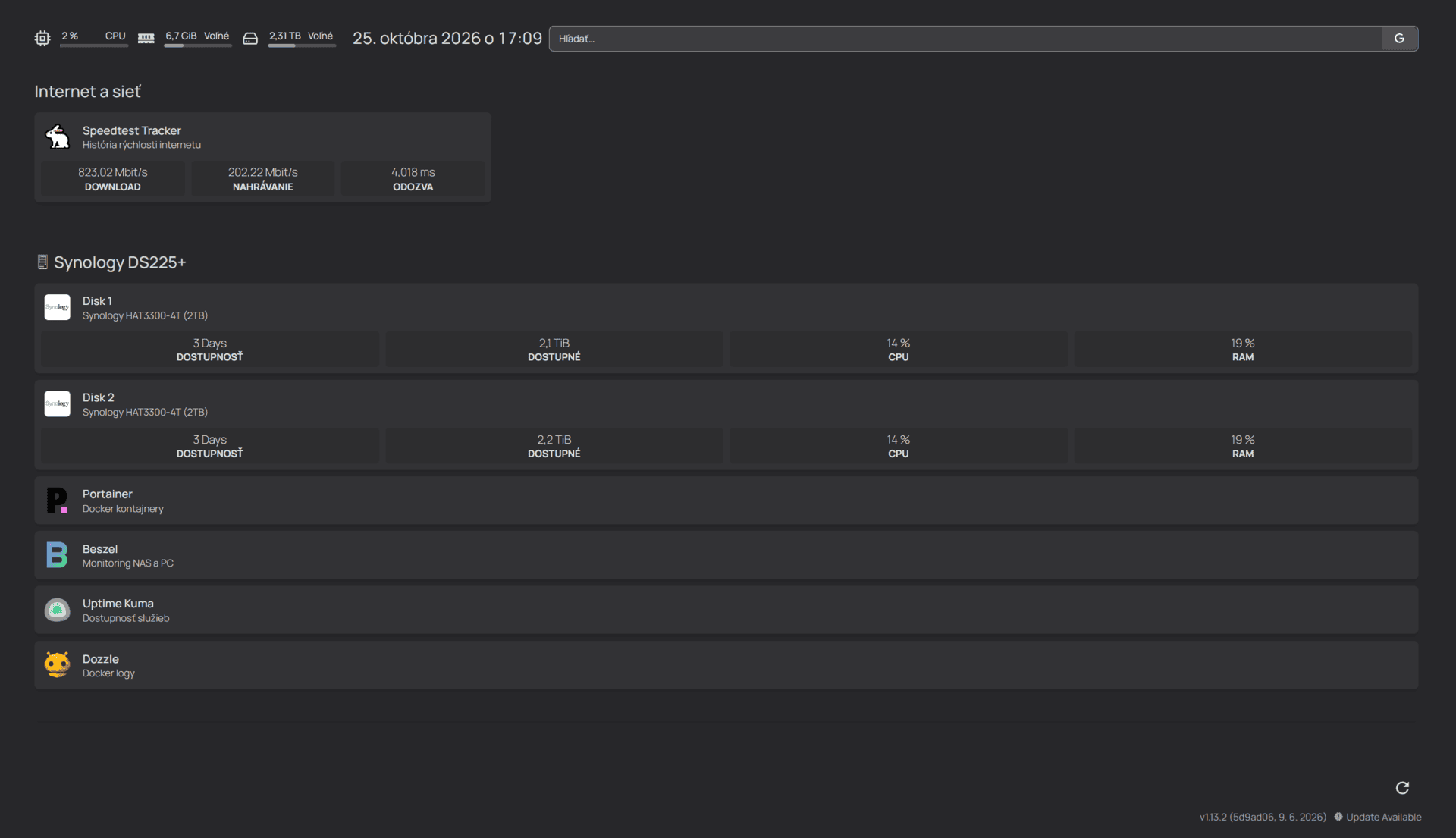
Over time I’ve built my own dashboard using the Homepage app. It’s my hub for the services I use around the NAS and home network.
As more apps get added, it’s easy to end up with a pile of separate addresses and open tabs. The dashboard helps me keep access to them organized. Instead of hunting for where a particular service is, I have my own place from which I can reach them.
On the home screen, for example, I can see an overview of the processor, free memory, and disk space, the internet speed test result, and links to management and monitoring. I like that I can quickly get my bearings without having to open every app separately first.
Alongside the dashboard, I also keep quick links ready in my browser. It’s not the same as the dashboard itself, but it nicely complements the way I organize my services. In my overview, for example, I have the NAS, Beszel, Uptime Kuma, Dozzle, Speedtest Tracker, and Portainer.

Portainer and Dozzle: a better overview of what’s running
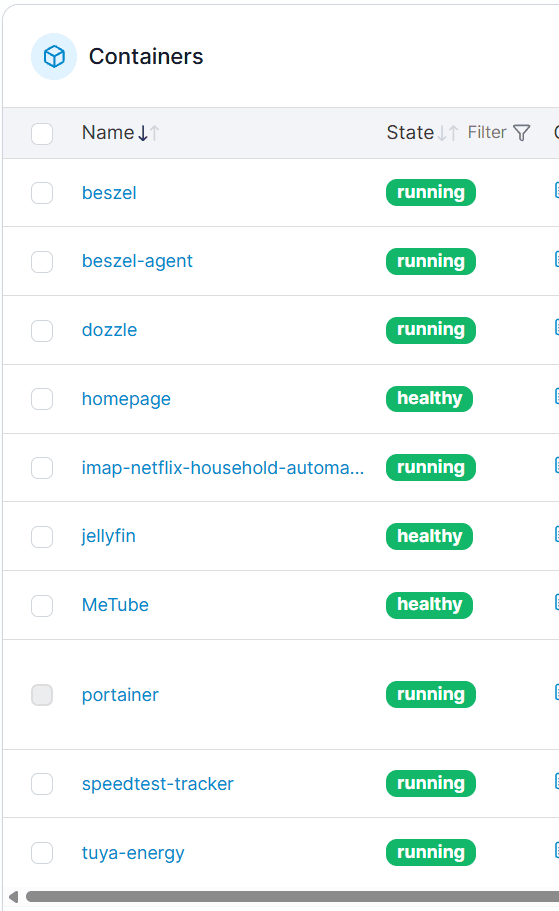
Portainer is no longer just an item on the list of apps I wanted to try. I use it as an overview of my containers. On a single screen I can see their names and status, which makes it easier to keep track of the whole setup.
In the attached screenshot from October, for example, you can see Homepage, Beszel, Dozzle, MeTube, and Speedtest Tracker. Each service has a different role, but they’re all part of how I’m gradually customizing my NAS.
When looking for the cause of a problem, Dozzle with its log overview also comes in handy. There’s a difference between just knowing an app isn’t working and actually being able to see what it’s reporting. These tools, too, are part of how I’m learning the way my own services work.
Monitoring: Beszel, Uptime Kuma, and Speedtest Tracker
Another area that caught my interest is monitoring. In my setup, there’s a place for Beszel, which is designed for tracking the system and resource usage. With several apps, it’s useful to be able to look beyond their normal user interface.
Among my quick links, I also have Uptime Kuma for service availability. With this kind of overview, it’s not just about whether one specific page can be opened, but also about keeping track of which tools I have ready and where to find them.
Speedtest Tracker, meanwhile, is for tracking my internet connection and its results over time. I’m running the container on the NAS. I’m not sharing specific measured speeds here for now; the point of this article is to present how I use it, not to compare internet connections.
Multimedia and trying out other possibilities
My setup also includes MeTube, and Jellyfin has also made its way in. Being able to try out apps like these was one of the reasons I wanted a NAS with container support.
In the current screenshot, Jellyfin is already up and running. The setup keeps evolving: I use some services regularly, others I’m trying out, and I can turn them on or set them aside as needed.
With multimedia, storage space also comes into play. I still have a 4 TB drive from my older NAS, and I’m thinking about how to make further use of it. For now, it’s just a possibility for the future, not a finished expansion I’d evaluate in this review.
How the DS225+ helps me in everyday life
For me, the biggest advantage is combining several tasks in one device. The files I focused on in my first review are still important. But alongside them, I now also have the ability to build my own overview of apps and run tools according to my own needs.
The dashboard helps me find my way around, Portainer gives me an overview of containers, and the other services let me experiment with monitoring and multimedia. The NAS has thus become part of my technical projects, through which I keep learning something new.
This is exactly what I enjoy about it: I can gradually turn it into an environment that makes sense for me. I don’t have to stick with the settings I configured on day one.
It’s not all just install and forget
More apps at once means more things to keep track of. You need to understand at least what each service is for, what you expect from it, and where to start when it doesn’t behave the way you’d like.
The dashboard isn’t a replacement for managing individual apps. It’s a tool that brings them together into one overview. Similarly, a list of running containers on its own doesn’t tell you everything about whether every function of an app is working correctly.
I see it as an ongoing project. I’d rather try out one more option and understand it properly than have everything that exists running at once.
My assessment after further use
In my first review, I wrote about several of the DS225+’s possibilities as plans. Now I can show a concrete step forward: my own dashboard and the set of services I’ve gotten running on the NAS.
The DS225+ helps me not just with files, but also as a foundation for my own home services. That’s its most interesting benefit for me after my first experiences.
I’ll be able to keep expanding this follow-up with more detailed experiences with individual apps. You can read about what the first setup looked like and why I chose this NAS in my first Synology DS225+ review.
Getting started with the NAS: First Synology DS225+ review · How Mr. Benej helped me with my NAS